This is the first blog post in a series of posts for using privacy enhancing tools and tools for collaboration with others.
This post is about the version control system
git and is split in two parts: Firstly, we introduce version control and motivate its use. Secondly, we introduce the basics for using git.
1. Getting Started
In this section, we motivate the use of version control. Furthermore, we show where to download and how to install git. At the end, we explain how to first set up your git environment.
About Version Control:
A Version Control System (VCS) is a tool that saves changes to a set of files over time, so that you can reassemble files from a previous state later. Moreover, it gives you the opportunity to compare changes over time, and if used in collaboration with others, it shows who changed what, when and why.
Git in a nutshell:
The major difference between git and any other Version Control System (e.g. SVN, CVS, ...) is how git handles the data. Most of these systems store data as a list of file-based changes over time. Git is different. Git handles the data in "snapshots", and every time you commit something it takes a snapshot of what all your files look like and stores a reference to that snapshot.
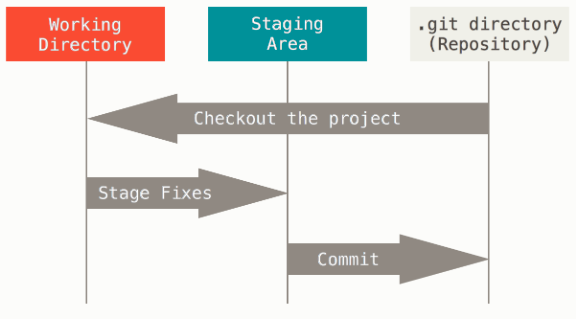
An important thing to remember, is how git works internally. Git works in three states: committed, modified and staged. Committed means that your data is stored safely in your local repository. Modified means that you have changed a file, but have not committed it yet to your local repository. Staged means that you have marked a file to go into your next commit snapshot.
 |
| http://git-scm.com/book/en/v2/Getting-Started-Git-Basics |
A typical work flow in git is as follows:
- You modify some data/file in your working directory.
- You stage the files, adding a snapshot to your staging area.
- You do a commit, which adds your snapshot to your local repository.
Furthermore, nearly every command in git is local. This means, that git has a copy of the whole repository in a local repository where you work in. To synchronize this repositories you have to use git pull and push.
Download & Install:
For Linux:
$ sudo apt-get install git-all
First time setup:
After git is installed, you can configure some settings in your git config file. It is normally located in your home directory as ~/.gitconfig . The first thing you should do is to set up your identity:
$ git config --global user.name "John Doe"
$ git config --global user.email johndoe@example.com
You can also set up your preferred editor and many other things:
$ git config --global core.editor emacs
You should now have a basic understanding of how git works. Now let's get started with the fun part.
2. Git Basics
In this section, we show the basic commands in git.
git init
If you want to set up a new repository, you first have to run:
which will set up a .git folder with all the necessary git files.
git clone
If you want to get a copy of an existing repository, you have to run:
$ git clone username@host:/path/to/project.git exampleProject
which will use SSH to check out a copy of a remote repository.
git status
To check the status of your files, to see which ones are modified, staged or committed, you can use:
$ git status
On branch master
nothing to commit, working directory clean
This means that none of your files are untraced or modified. If you now for example add a new file README the output of git status will look like:
$ git status
On branch master
Untracked files:
  (use "git add <file>..." to include in what will be committed)

    README

nothing added to commit but untracked files present (use "git add" to track)
which means you have a new untraced file called README.
git add
If you now want to add the previously created README file to your repository you have to use:
which will add the file README to staging area. If you run git status now you will see:
$ git status
On branch master
Changes to be committed:
  (use "git reset HEAD <file>..." to unstage)

    new file:   README
git ignore
You will often also have files which you do not want to be added to the git repository. This could for example be a pdf file, if you collaboratively work on latex documents, or some output and executable files, when you collaboratively program something. Therefore, git offers the .gitignore file.
# no .a files
*.a

# ignore all files in the build/ directory
build/

# ignore all .pdf files in the doc/ directory
doc/**/*.pdf
Just add a file .gitignore with the previous content to your repository and git will ignore the defined files.
git commit
Now your staging area is set up. If you now want to commit your files to your local repository, you can use:
$ git commit -m "Add feature X"
[master 666abcd] Add feature X
 2 files changed, 42 insertions(+)
 create mode 100645 README
which will add a snapshot of your current files to your repository. Be aware that files that you have not added will not be part of your snapshot. The option -m will add the message "Add feature X" to your commit, so that you can later know more about your commit. Always use short and meaningful commit messages!
If you discover that you have done something wrong, or forgot something, you can also undo your commit by running:
which will open a commit log, where you can change your things and commit again.
git rm
If you want to remove a file that you already added to your staging area with git add you have to run:
$ git rm README2
rm 'README2'
$ git status
On branch master
Changes to be committed:
  (use "git reset HEAD <file>..." to unstage)

    deleted:    README2
which will delete the file README2.
git log
To view your commit history you can use:
$ git log
commit ca82a6dff817ec66f44342007202690a93763949
Author: Jane Doe <jane.doe@gmail.com>
Date:   Mon Mar 17 21:52:11 2008 -0700

    add the fancy feature Y

commit 085bb3bcb608e1e8451d4b2432f8ecbe6306e7e7
Author: John Doe <john.doe@gmail.com>
Date:   Fri Feb 30 13:37:00 2000 -0100

    initial commit
which will list your commit history in reverse chronical order. Be aware that files that are committed are not necessarily in the remote repository. If you commit a snapshot, you just add files to your local repository.
git push
If you want to collaborate with others, or store your files in a remote repository, you have to connect your local repository with a remote repository. All of this is normally done by git itself, but you can also do it manually. To view your remotes run:
$ git remote -v
origin https://github.com/johndoe/exampleProject (fetch)
origin https://github.com/johndoe/exampleProject (push)
which will show your remote branches.
If you want now to push the changes in your local repository to the remote repository you have to run:
which will synchronize the changes in your local respository (master branch) to your remote repository. As a shortcut, you can also just type git push, when you are already in the correct branch.
git pull
To synchronize your local repository with your remote repository and to fetch data, you have to run:
which will fetch the data from the remote repository, and merge it with the data in your local repository.
git tags
Git also offers you the abiltity to tag certain commits, which can be used to label for example a release point. To create a new tag just type:
$ git tag -a release1 -m "this are some files"
which will create a tag called release1 with a short description. To list tags you can run:
$ git tag
release1
release2
If you want to have more details about a tag, you can also run:
$ git show release1
tag release1
Tagger: Edward Snowden <citizenfour@gmail.com>                             Date:   Sat May 23 20:19:12 2013 +0800

this are some files

commit ca82a6dff817ec66f44342007202690a93763949
Author: Edward Snowden <citizenfour@gmail.com>
Date:   Mon Jan 01 21:52:11 2013 -1000

    copy all the data
You can also share tags:
$ git push origin release1
and check out the remote repository at exactly this tag:
$ git checkout -b release2 release2
Switched to a new branch 'release2'
gitk
 |
| http://wiki.siduction.de/images/8/81/Gitk-main1.png |
These are the basics of git. Stay tuned for further posts about the advanced use of git and about other privacy enhancing and collaboration tools.